We’ve previously given you a
few tips on using
Google Buzz for mobile, and today we’re focusing on the Buzz layer in Google Maps for mobile. As many of you have found out, location puts a different spin on Google Buzz, adding context to posts and letting anyone find relevant public posts in a natural way -- on a map! We wanted to share some tips on a few creative ways we’ve seen you using the Google Buzz layer.
Explore the world around you
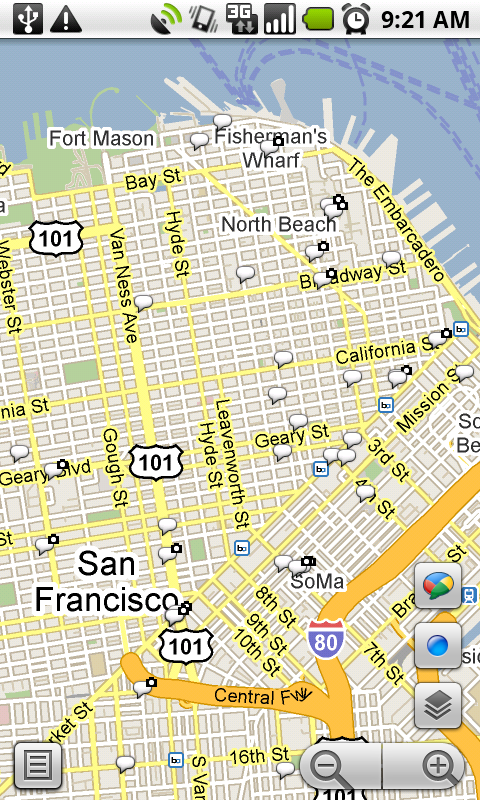
Are you curious if there’s anything interesting going on nearby? Enable the Buzz layer in Google Maps, then select any icon from the map or open the list view to see all the posts from the map area you’re viewing. We’ve found patients chatting from different hospital rooms, neighbors discussing a power outage, and even some public flirting. Here are a few more awesome examples we’ve stumbled upon:
- A father hearing his baby’s first heartbeats at the hospital
- Status updates of a rooftop fire being put out in San Francisco
- Shooting of the TV show “Trauma” on location
- Photos of the stadiums being built for the World Cup in South Africa
Ask questions and get answersIf you’re exploring a new area and looking for tips, post a question, and someone browsing Buzz in the area may be able to provide a quick answer. A few weeks ago on President’s Day, I was hanging out in the Russian Hill neighborhood of San Francisco. Rather than take my chances, I posted a question asking what the parking rules were. A friendly local soon informed me that I’d be free of parking stress -- meters were enforced but permit parking was not.
Share a picture worth a thousand wordsEven if you could type 100 words a minute from your phone, sometimes a picture tells a different story than words could ever describe. Google Maps for mobile or the Android
Buzz widget lets anyone share a picture of their favorite dish or the funny street sign they’ve found. Just attach a photo to your post or take a new one before posting. We’ve found great cases of citizen photo journalism on the public Google Buzz layer, such as traffic accidents blocking roads and location-tagged Picasa Web Albums showing the earthquake recovery in Haiti.
Give tips or learn about places 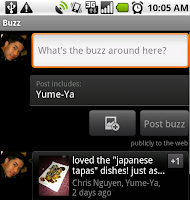
Google Buzz posts you create in Maps will always include your location (i.e. “My Location”) by default, but you can easily change the approximate location to a specific place, such as a restaurant. For example, change the post’s location and select the restaurant from the suggestions list before posting to give a recommendation or tip. Alternatively, you can search for the restaurant in Maps and select the Google Buzz option from the search results page (the post’s location will automatically be the restaurant). Now, people reading your post will know that your recommendation is about that exact restaurant, and your recommendation will be available for anyone browsing that restaurant’s search results page.
...and one reminderBecause we built Google Buzz in Maps for mobile to let you share information about places with the world, posts from Maps are always public to the web and include a location, either your approximate one or a specific place you choose.
To get started, install the latest version of Google Maps 4.0+ on your Android 1.6+, Windows Mobile, or Symbian S60 phone (BlackBerry coming soon; see availability
details) by visiting
m.google.com/maps on your phone and going to Layers > Buzz from the Maps main menu. From Android, iPhone, and iPod touch devices, you can also use the
buzz.google.com Nearby view and map just like the Maps layer.
Visit our
Help Center to learn more or tell us your feedback and questions in our
Help Forum. Give us suggestions and vote on other people’s on the
Mobile Product Ideas page!
Posted by Chris Nguyen, Product Marketing, Google Mobile Team